SDKMAN
SDKMAN! lets you install, manage and work with multiple versions of software development kits (SDKs) on most Unix-like systems.
This means for example, you can install multiple versions of Java, Kotlin, Scala, Groovy, Gradle, Maven, Grails, Spring Boot, and many more. See the full list as of mid 2024 here.
Installation
For installation instructions see the SDKMAN! website here.
Usage
For common usage demonstration, using JAVA as an example:
To find all available versions of Java, run:
sdk list javaThis will show a list of available versions:
================================================================================
Available Java Versions for macOS ARM 64bit
================================================================================
 Vendor        | Use | Version      | Dist    | Status     | Identifier
--------------------------------------------------------------------------------
 Corretto      |     | 22.0.2       | amzn    |            | 22.0.2-amzn
               |     | 21.0.4       | amzn    |            | 21.0.4-amzn
               |     | 17.0.12      | amzn    |            | 17.0.12-amzn
               |     | 11.0.24      | amzn    |            | 11.0.24-amzn
               |     | 8.0.422      | amzn    |            | 8.0.422-amzn
               |     | 8.0.412      | amzn    | local only | 8.0.412-amzn
 Gluon         |     | 22.1.0.1.r17 | gln     |            | 22.1.0.1.r17-gln
               |     | 22.1.0.1.r11 | gln     |            | 22.1.0.1.r11-gln
 GraalVM CE    |     | 22.0.2       | graalce |            | 22.0.2-graalce
               |     | 21.0.2       | graalce |            | 21.0.2-graalce
               |     | 17.0.9       | graalce |            | 17.0.9-graalce
 GraalVM Oracle|     | 24.ea.11     | graal   |            | 24.ea.11-graal
               |     | 24.ea.9      | graal   |            | 24.ea.9-graal
               |     | 24.ea.8      | graal   |            | 24.ea.8-graal

... (the list goes on)
See sdk-list-java.txt for the full list as of mid 2024.
To install java, choose the identifier (e.g. 22.0.1-open) for the version you want, and run:
% sdk install java 22.0.1-open

Downloading: java 22.0.1-open

In progress...

######################################################################################################################################################################################################################################################### 100.0%

Repackaging Java 22.0.1-open...

Done repackaging...
Cleaning up residual files...

Installing: java 22.0.1-open
Done installing!

Do you want java 22.0.1-open to be set as default? (Y/n): n
To see what versions of java you have installed, run:
% sdk list java | grep -E "installed|local only"

|     | 8.0.412      | amzn    | local only | 8.0.412-amzn
|     | 22.0.1       | open    | installed  | 22.0.1-open
| >>> | 21.0.3       | tem     | local only | 21.0.3-tem
|     | 17.0.7       | tem     | local only | 17.0.7-tem
|     | 11.0.24      | tem     | installed  | 11.0.24-tem
|     | 11.0.19      | tem     | local only | 11.0.19-tem
To use a specific version of java, run:
% sdk use java 22.0.1-open

Using java version 22.0.1-open in this shell.
Confirm with
% java -version

openjdk version "22.0.1" 2024-04-16
OpenJDK Runtime Environment (build 22.0.1+8-16)
OpenJDK 64-Bit Server VM (build 22.0.1+8-16, mixed mode, sharing)
When you are in the root of your java project, set the appropriate java version using sdk use java <id> and then run:
% sdk env init

.sdkmanrc created.
This creates a .sdkmanrc file in the root of your project, which contains the following:
# Enable auto-env through the sdkman_auto_env config
# Add key=value pairs of SDKs to use below
java=21.0.3-tem
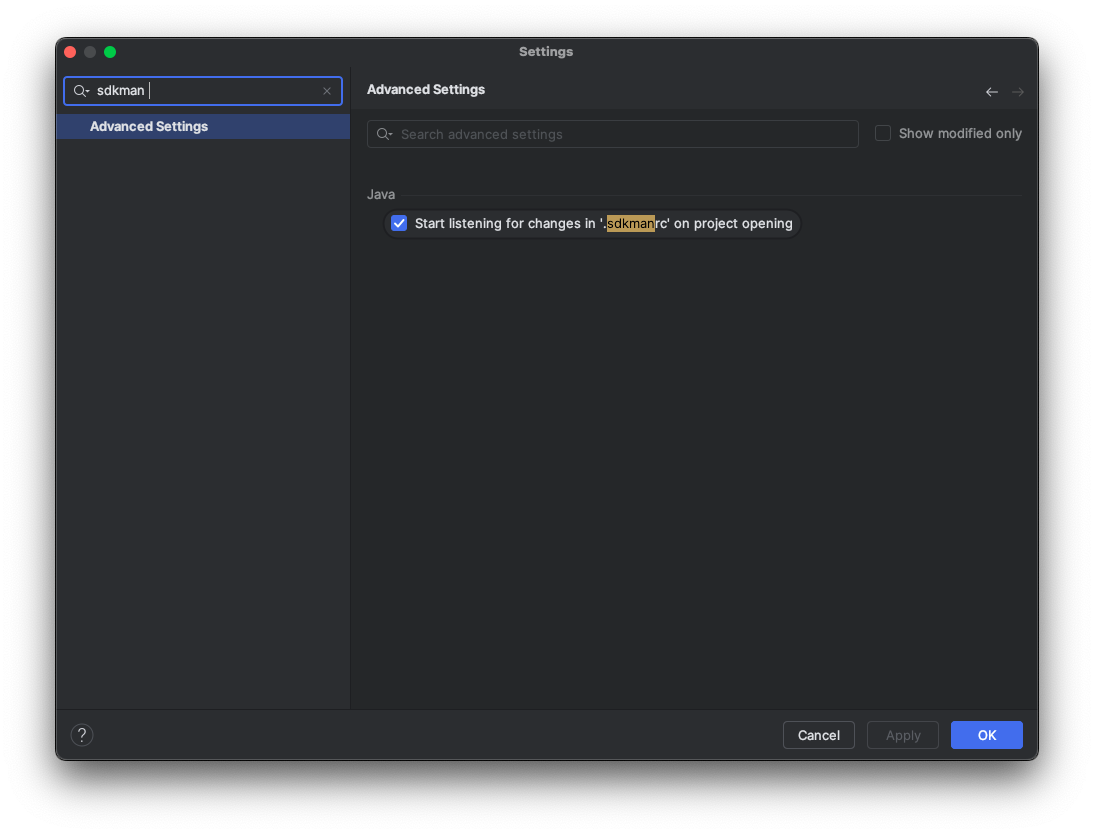
Intellij supports sdkman so your project should be configured to use the correct version of java.
Enable auto switching of java versions as you switch between projects by setting sdkman_auto_env=true in ~/.sdkman/etc/config.
Now as you cd into a directory, the correct version of java will be enabled.
% cd posts/sdkman

Using java version 21.0.3-tem in this shell.

% cd ../..

Using java version 22.0.1-open in this shell.
If you checkout a project, use sdk env install to ensure you have the right SDKs installed and activated.
% sdk env install

java 21.0.3-tem is already installed.

Using java version 21.0.3-tem in this shell.
See the full documentation at https://sdkman.io/usage/
Summary
When starting a new project, install specific versions of the tools you need using SDKMAN!.
Make sure to commit an .sdkmanrc file to the root of your project so that your team members can use the same versions of the tools you are using. They can easily install the correct versions using sdk env install.
This will ensure that you have a consistent development environment, regardless of the machine you are working on.
If you enjoyed this article, feel free to support my work on Ko-fi!
Support on Ko-fi